Office 365 SMTP: the 5 relay methods that work in 2026
Office 365 SMTP relay in 2026: the 5 sending methods, which to pick by scenario, the Basic Auth deprecation, and the settings that actually work.
The Office 365 SMTP setup most teams are running in 2026 is on a deprecation clock they have not noticed. Basic authentication for SMTP client submission, the method behind most printer, scanner, and application email configurations, is being disabled by default on existing tenants in late December 2026, with full removal scheduled for H2 2027. The configuration that has quietly worked for years stops working, and the replacement depends entirely on what you are sending and to whom. There is no single migration path. Configuring smtp relay office 365 correctly means choosing among five distinct Office 365 SMTP methods, and picking the wrong one for your scenario produces either broken mail flow or a security posture that fails audit.
This guide is the decision framework we use when teams ask how to configure Office 365 SMTP correctly in 2026. It covers the five relay methods (SMTP AUTH with OAuth, connector relay, Direct Send, High Volume Email, and Azure Communication Services), which method fits which scenario, the exact settings that work, the Basic Auth deprecation migration that most guides treat as a footnote, and the throttling limits that catch teams at scale. Written for IT teams and developers who need their Microsoft 365 SMTP configuration to survive the deprecation cleanly rather than break in December.
For the broader sending infrastructure context, see the SMTP relay guide and the email deliverability pillar. For the authentication layer that sits underneath any relay method, see the SPF DKIM DMARC setup guide.
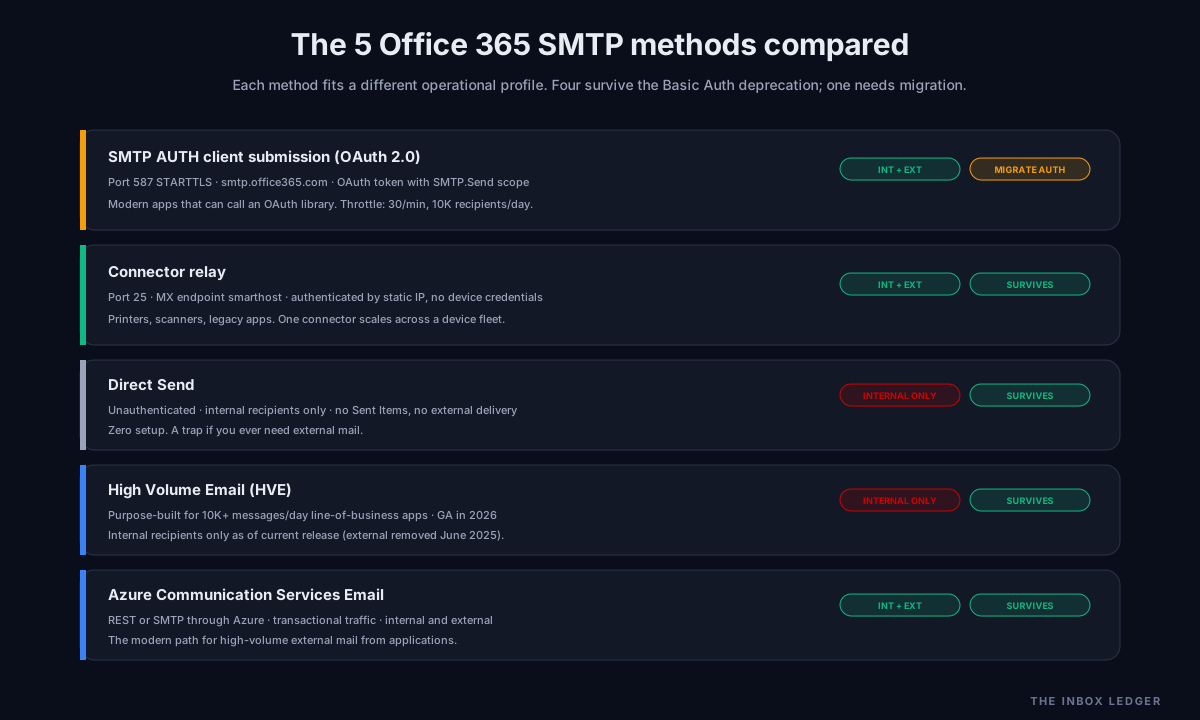
The 5 Office 365 SMTP methods (and which Microsoft is killing)
Microsoft 365 supports five distinct ways to send mail through its infrastructure. Four survive the Basic Auth deprecation cleanly; one requires active migration before the cutoff.
SMTP AUTH client submission (the smtp auth office 365 method being deprecated for Basic Auth). The classic method (documented by Microsoft): authenticate with a mailbox username and password, submit on port 587 with STARTTLS. Basic Auth on this method is on the deprecation path. The method itself survives if you move to OAuth 2.0 authentication; only the Basic Auth credential style is being removed.
Connector relay (survives cleanly). The device or application relays through an Exchange Online inbound connector authenticated by static IP or TLS certificate rather than mailbox credentials. No username and password at the device level. This is Microsoft’s recommended replacement for Basic Auth printer and scanner setups.
Direct Send (survives, but limited). Send unauthenticated mail directly to Microsoft 365 for internal recipients only. No auth, no Sent Items, no external delivery. Useful narrowly; a trap if you need external mail.
High Volume Email / HVE (survives, internal only). Microsoft’s purpose-built method for line-of-business apps sending above 10,000 messages per day, reached general availability in 2026. Internal recipients only as of the current release; external sending was removed in June 2025.
Azure Communication Services Email (survives, external capable). REST or SMTP sending through Azure for transactional traffic to both internal and external recipients. The modern path for high-volume external mail from applications.
The deprecation only affects the Basic Auth credential style on the first method. If your Office 365 SMTP setup uses a mailbox username and password to send on port 587, that is the configuration that breaks in late December 2026.
Office 365 SMTP settings: the values that actually work
Most articles on this topic miss how much of the confusion is just hostnames: Microsoft has several that look interchangeable but are not. For SMTP AUTH client submission:
- Server (smarthost):
smtp.office365.com(notoutlook.office365.com, notmail.protection.outlook.com, which are different services) - Port: 587 with STARTTLS (not 465, not 25 for client submission)
- Encryption: STARTTLS with TLS 1.2 or higher
- Authentication: required; full email address as username
- Throttling: 30 messages per minute, 10,000 recipients per day per mailbox
The hostname did not change in the Office 365 to Microsoft 365 rename; smtp.office365.com is still correct. The username is always the full email address, never a short alias or display name. For a shared mailbox, the shared mailbox’s full email address is the SMTP identity.
Two settings catch teams repeatedly. First, SMTP AUTH is disabled by default for all tenants created after January 2020, so even with correct credentials the submission fails with 5.7.57 Client not authenticated to send mail until SMTP AUTH is explicitly enabled on the mailbox (via Exchange admin center or PowerShell). Second, port 25 is for server-to-server SMTP and is usually blocked by ISPs for client submission, so a setup that works internally fails when moved to a cloud host that blocks port 25.
SMTP AUTH with OAuth 2.0: the modern client submission path
If you need the SMTP AUTH client submission method to survive the deprecation, the migration is from Basic Auth to OAuth 2.0. The method, port, and hostname stay the same; only the authentication changes.
The OAuth migration requires:
- An app registration in Microsoft Entra ID (formerly Azure AD) with the
SMTP.Sendpermission - Admin consent granted for that permission
- A token that includes the
SMTP.Sendscope, obtained via MSAL or another OAuth library - SMTP AUTH still enabled on the mailbox itself; OAuth does not bypass the per-mailbox toggle
The most common OAuth failure is 5.7.57 because the per-mailbox SMTP AUTH toggle is off even though the app registration is correct. Modern Auth does not override that toggle; the mailbox must have SMTP AUTH enabled regardless of credential style.
OAuth client submission fits modern applications that can call an OAuth library. It does not fit legacy printers and scanners that do not support OAuth, which is where connector relay becomes the answer.
Connector relay: the answer for printers, scanners, and legacy apps
For devices that cannot do OAuth (most multifunction printers, scanners, and older line-of-business applications), the Office 365 send connector relay is Microsoft’s recommended replacement for Basic Auth. The device sends with no authentication at the device level; the connection is secured through TLS and authenticated by the device’s static public IP address.
The setup:
- Confirm a static public IP for the sending device or the network it sits behind. Connector relay authenticates by IP, so a dynamic IP breaks it
- Create an inbound connector in the Exchange admin center, type “Partner organization,” scoped to authenticate by the static IP address
- Configure the device to use
yourdomain-com.mail.protection.outlook.comas the smarthost (the MX endpoint format, found in the Microsoft 365 admin center) - Set the device port to 25 for the connector relay (the connector accepts port 25 from the authenticated IP)
- Verify SPF includes the sending IP if the device sends as your domain, so the mail passes authentication downstream
Connector relay supports both internal and external recipients, unlike Direct Send and HVE, which makes it the most flexible survivor of the deprecation for device-based sending. The same connector configuration works across every device behind the static IP, so once configured it scales to a fleet of printers without per-device credentials.
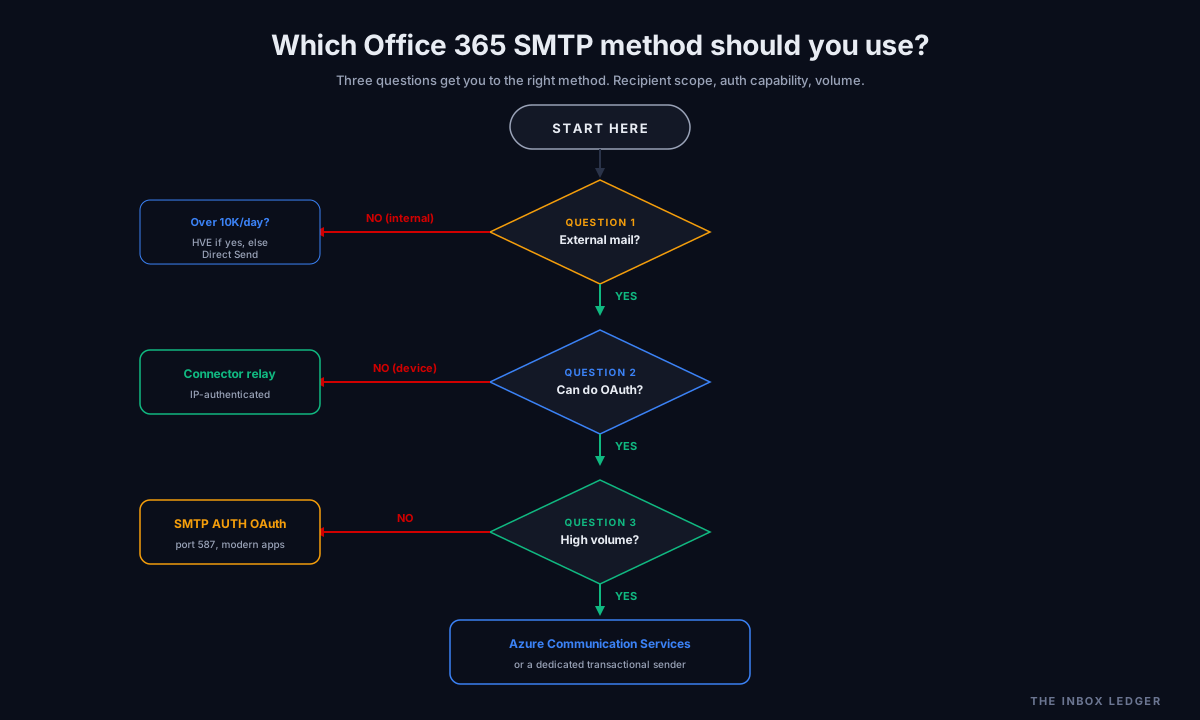
Which Office 365 SMTP method to use, by scenario
The method follows the scenario. The decision tree we use on engagements:
Modern application sending to internal and external recipients
Use SMTP AUTH with OAuth 2.0 if the app can call an OAuth library and volume is under the per-mailbox throttle (30/min, 10K recipients/day). For higher volume or cleaner architecture, use Azure Communication Services Email.
Printer, scanner, or legacy app on a static IP
Use connector relay. No OAuth needed, authenticates by IP, supports internal and external recipients, scales across a device fleet with one connector.
Line-of-business app sending above 10,000 messages per day, internal only
Use High Volume Email (HVE). Purpose-built for this volume, reached general availability in 2026, but internal recipients only as of the current release.
High-volume transactional mail to external recipients
Use Azure Communication Services Email, or move to a dedicated transactional email service. This is the scenario where Office 365 SMTP often is not the right tool at all; a purpose-built transactional sender handles deliverability, throttling, and reputation better than routing transactional volume through Microsoft 365.
Internal-only notifications with no external delivery ever
Direct Send works with zero setup, but the moment you need external delivery or a Sent Items record, you will regret it. Use it only when the internal-only constraint is permanent.
The Basic Auth deprecation: what breaks and when
The timeline matters because the migration takes longer than teams expect. The current Microsoft schedule (revised in January 2026):
- Now through late December 2026: SMTP AUTH Basic authentication works unchanged on existing tenants
- Late December 2026: Basic Auth for SMTP client submission disabled by default on existing tenants
- H2 2027: final removal date scheduled for announcement
What this means in practice: every device and application using a mailbox username and password to send through smtp.office365.com on port 587 stops working when Basic Auth disables. Tenants created after January 2020 already have SMTP AUTH disabled by default, so newer organizations are partially ahead, but anyone with legacy device configurations carries deprecation risk.
The migration is not a single switch. Each device or app needs assessment: can it do OAuth (move to OAuth client submission), or does it need IP-based auth (move to connector relay), or should it move off Office 365 SMTP entirely (transactional sender or Azure Communication Services). The inventory and remediation across a device fleet realistically takes weeks, which is why starting before the December cutoff matters.
Common Office 365 SMTP mistakes
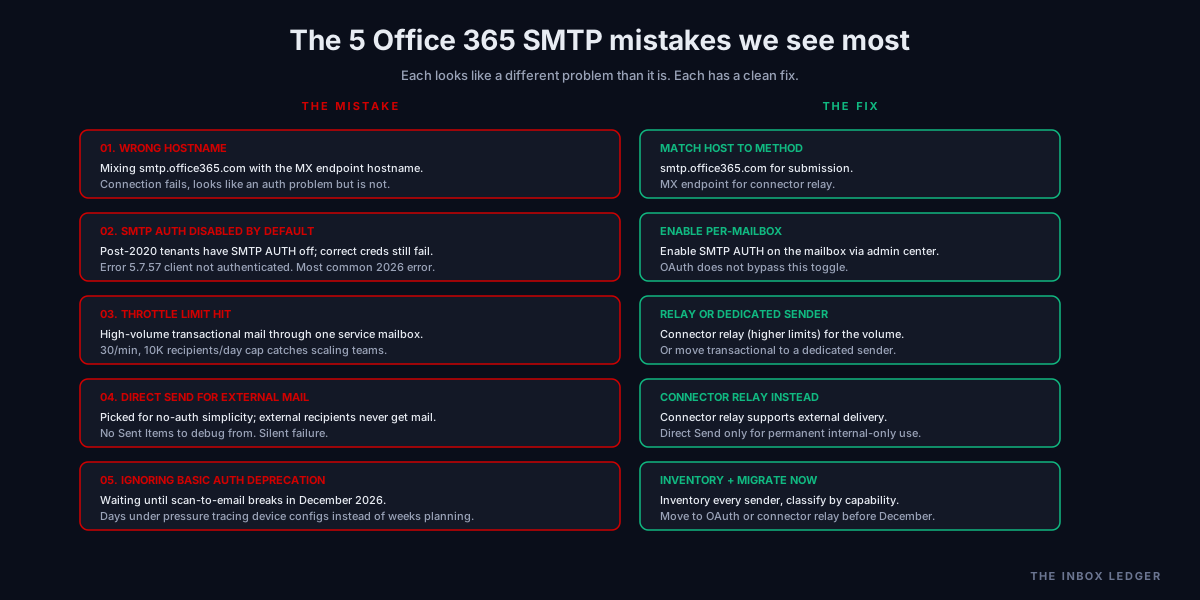
What we see most often on audits falls into five patterns:
1. Using the wrong hostname
smtp.office365.com for client submission, yourdomain-com.mail.protection.outlook.com for connector relay. Teams mix these up constantly. Using the MX endpoint for client submission or the submission endpoint for connector relay produces connection failures that look like auth problems but are not.
2. Forgetting SMTP AUTH is disabled by default post-2020
Tenants created after January 2020 have SMTP AUTH off by default. Correct credentials still fail with 5.7.57 until SMTP AUTH is enabled on the specific mailbox. This is the single most common Office 365 SMTP error in 2026.
3. Routing high-volume external transactional mail through client submission
The per-mailbox throttle (30/min, 10K recipients/day) catches teams that scale transactional volume through a single service mailbox. The fix is connector relay (higher limits) or a dedicated transactional sender, not fighting the throttle.
4. Choosing Direct Send for external mail
Direct Send only delivers to internal recipients. Teams pick it because it needs no auth, then discover external recipients never get the mail and there is no Sent Items record to debug from. Use connector relay for external delivery.
5. Ignoring the Basic Auth deprecation until it breaks
The most expensive mistake. The deprecation has a known date; the remediation is known. Teams that wait until scan-to-email breaks in December spend days under pressure tracing device configs instead of weeks planning the migration calmly.
The practical Office 365 SMTP setup checklist
A clean configuration, in order:
- Inventory every sender. Every printer, scanner, app, and service sending through Microsoft 365 SMTP, with the auth method each uses
- Flag Basic Auth dependencies. Anything using a mailbox username and password on port 587 is on the deprecation clock
- Classify each sender by capability. Can do OAuth, needs IP-based auth, or should move off Office 365 SMTP
- For OAuth-capable apps: register an app in Entra ID with
SMTP.Send, grant admin consent, confirm SMTP AUTH enabled on the mailbox - For IP-based devices: confirm static IP, create the inbound connector, point the device at the MX endpoint smarthost
- For high-volume internal: evaluate HVE
- For high-volume external: evaluate Azure Communication Services or a dedicated transactional sender
- Verify SPF, DKIM, DMARC include every sending source so mail authenticates downstream (see SPF DKIM DMARC setup)
- Test each path to an internal and external recipient, checking headers for authentication results
- Document the configuration so the next person knows which device uses which method and why
- Complete the migration before late December 2026, not during the December break when support response is slowest
The discipline most often missing is steps 1 and 2. Teams know their main mail flow but have no inventory of the peripheral devices and legacy apps that quietly send through Microsoft 365 SMTP. Those are exactly what breaks when Basic Auth disables.
How Office 365 SMTP connects to broader deliverability
The relay method determines how mail enters the delivery pipeline, but it does not by itself determine inbox placement. Mail sent through any Office 365 SMTP method still depends on the sending domain’s authentication and reputation to reach the inbox rather than spam.
Authentication is the immediate dependency: every sending source, whether OAuth client submission, connector relay, or HVE, needs to be covered by the domain’s SPF record and ideally DKIM-signed, or DMARC fails downstream. The SPF DKIM DMARC setup guide and DMARC policy guide cover the authentication layer that every relay method depends on. The sender reputation guide covers the reputation signals that determine whether authenticated mail actually reaches the inbox.
For the broader relay decision (when to use Microsoft 365 at all versus a dedicated relay), see the SMTP relay guide. For teams running cold outbound specifically, Office 365 SMTP is rarely the right sending path; the best cold email software guide and cold email outreach guide cover the purpose-built tools that handle outbound sending and warmup properly. For the foundational context, the email deliverability pillar and how to improve email deliverability walkthrough tie it together.
Frequently asked questions
What is the Office 365 SMTP server address and port?
Is Office 365 SMTP being deprecated in 2026?
How do I fix the 5.7.57 client not authenticated error in Office 365 SMTP?
What is the difference between SMTP relay and Direct Send in Office 365?
What are the Office 365 SMTP sending limits?
Can I use Office 365 SMTP for cold email?
How do I migrate from Basic Auth to OAuth for Office 365 SMTP?
The bottom line on Office 365 SMTP
The Office 365 SMTP decision in 2026 is not “how do I configure SMTP,” it is “which of the five methods fits my scenario, and is my current method on the deprecation clock.” Modern apps move to OAuth client submission or Azure Communication Services. Printers and legacy devices move to connector relay with IP authentication. High-volume internal apps use HVE. High-volume external transactional mail belongs on a dedicated sender, not Microsoft 365 at all. The Basic Auth deprecation forces the decision; the only real mistake is waiting until December to make it.
The teams we work with that handle this well treat it as an inventory problem first and a configuration problem second. Knowing every device and application that sends through Microsoft 365 SMTP, and which auth method each uses, is the work that prevents the December surprise. The configuration of each method is well documented; the inventory of what is actually sending is what teams lack.
For the layers underneath any relay method, see the SPF DKIM DMARC setup guide, the DMARC policy guide, and the sender reputation guide. For the broader relay decision and deliverability context, see the SMTP relay guide and the email deliverability pillar.
Subscribe to the weekly briefing for operator-grade deliverability and infrastructure notes, one short email every week.
More on Sending Infrastructure
Cold email infrastructure: the complete 2026 build guide
Cold email infrastructure in 2026: the five layers, the build order, sending limits, the data mistake that burns domains, and when not to DIY.
SMTP relay in 2026: how to choose and configure it right
SMTP relay services in 2026: what they do, when you need one, how to choose, and the deliverability rules that matter for high-volume sending.