SPF DKIM DMARC setup guide: the 2026 operator walkthrough
SPF DKIM DMARC setup in 2026: the operator walkthrough that covers DNS records, alignment, the 10-lookup limit, and the failures that block 80% of teams.
The SPF DKIM DMARC setup process is not the 30-minute checklist that most articles promise. The DNS records themselves take 30 minutes. The alignment work that determines whether those records actually authenticate your mail takes 30 to 90 days. The gap between “records published” and “mail authenticating correctly” is where most teams lose months of inbox placement without realizing it. After the February 2024 Google and Yahoo bulk sender enforcement and Microsoft’s May 2025 expansion, that gap became expensive: a misconfigured spf dkim dmarc setup does not just hurt deliverability; it actively flags your domain as suspicious.
This guide is the operator walkthrough we use on every deliverability audit. It covers the three DNS records (SPF, DKIM, DMARC) with the actual values to publish, the alignment problems that block 80% of teams from passing DMARC after the records are live, the 10-lookup SPF limit that silently breaks setups at scale, the DKIM key rotation discipline most articles skip, and the practical sequence for getting from “no authentication” to “p=reject and clean” in 60 to 90 days. Written for teams that need their SPF DKIM DMARC setup to survive Google Postmaster Tools scrutiny, not pass a vendor’s basic checker.
For the broader context on how authentication fits into sender reputation, the email deliverability pillar covers the full stack. For the DMARC policy escalation specifically, the DMARC policy guide covers the move from p=none through p=quarantine to p=reject. This spf dkim dmarc setup guide focuses on the records themselves: getting all three records right the first time.
What SPF DKIM DMARC actually do (and why all three are required in 2026)
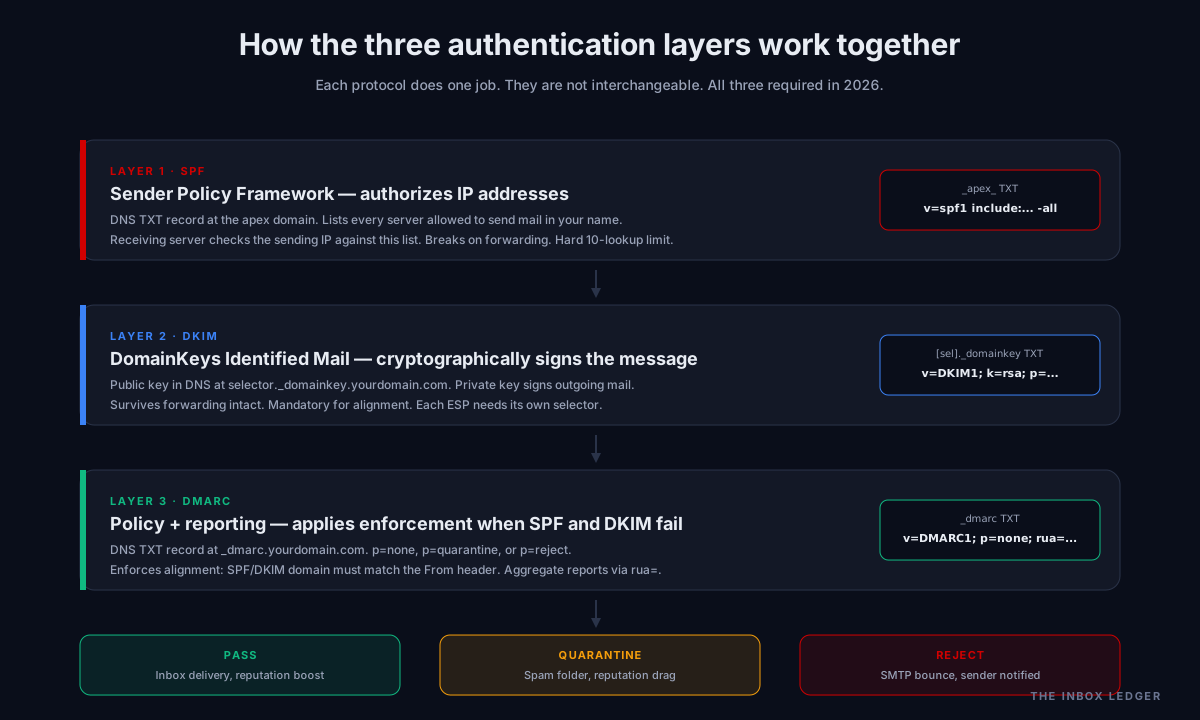
Each protocol does one job. They are not interchangeable, and skipping any one of them in 2026 means failing the bulk sender requirements at Gmail, Yahoo, and (since May 2025) Microsoft.
SPF (Sender Policy Framework, RFC 7208) publishes a list of IP addresses authorized to send mail from your domain. Receiving servers check the sending IP against this list. SPF is the oldest of the three and the most brittle: it breaks on email forwarding (the forwarder’s IP is not in your record), and it has a hard 10-DNS-lookup limit that silently fails large setups.
DKIM (DomainKeys Identified Mail, RFC 6376) cryptographically signs each outgoing message with a private key. The matching public key lives in your DNS as a TXT record at a “selector” subdomain. Receiving servers verify the signature, confirming the message was not modified in transit and was sent by a server that holds the private key. DKIM survives forwarding intact, which is why it is the dominant alignment mechanism in modern setups.
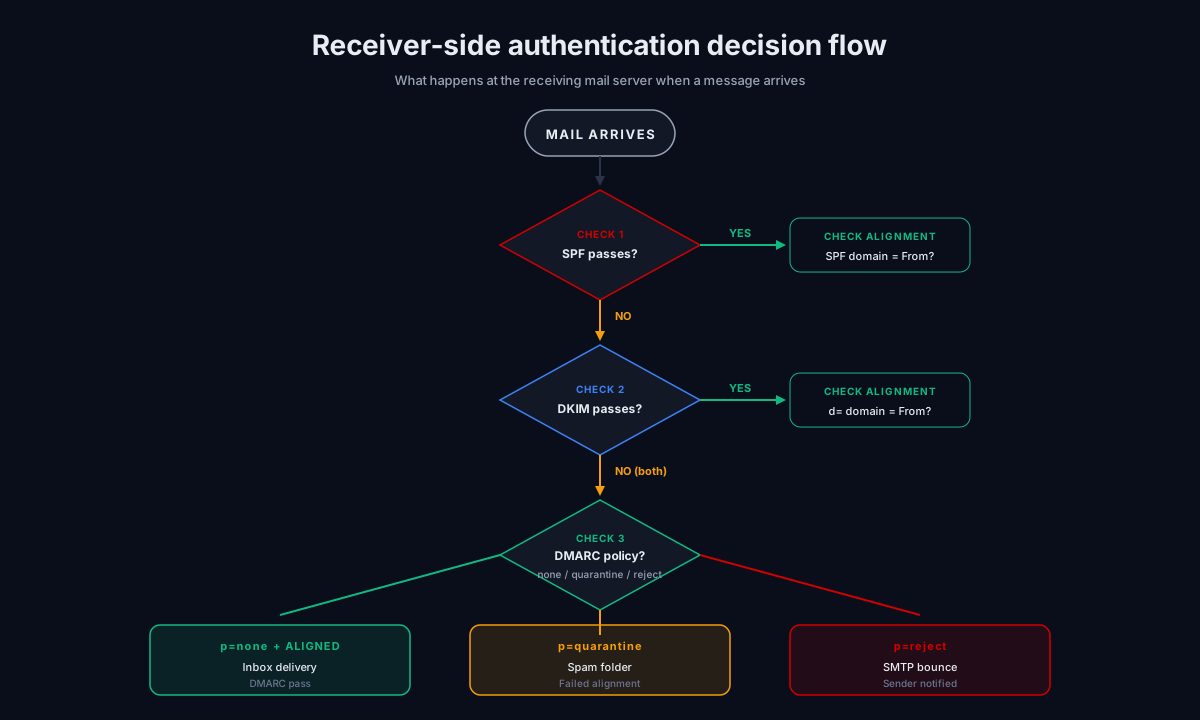
DMARC (Domain-based Message Authentication, Reporting and Conformance, RFC 7489) ties SPF and DKIM together with a policy. It tells receiving servers what to do when SPF and DKIM both fail (none, quarantine, or reject), and where to send reports about authentication results. DMARC also enforces “alignment”: the SPF and DKIM domains must match the visible From header domain for the protocol to consider the mail authenticated.
In 2026, Google’s bulk sender requirements mandate all three for senders pushing 5,000+ messages per day to Gmail. Yahoo’s rules are equivalent. Microsoft’s May 2025 enforcement expansion brought Outlook.com into the same standard. Below those thresholds the protocols are not legally required, but mailbox provider filters increasingly treat their absence as a strong negative signal regardless of volume.
SPF record setup: the actual DNS work
The SPF record is a single DNS TXT record published at the apex of your domain (yourdomain.com, not _spf.yourdomain.com). The record lists every server authorized to send mail in your name.
The record format
A working SPF record looks like this:
v=spf1 include:_spf.google.com include:sendgrid.net ip4:203.0.113.45 -all
The components:
v=spf1: protocol version (always SPF1 in 2026)include:: pull in another domain’s SPF policy (e.g., your ESP)ip4:/ip6:: explicit IP addresses authorized to send-all/~all: the fail mechanism.-allis hard fail (reject),~allis soft fail (mark as suspicious)
Use -all once your SPF DKIM DMARC setup is mature. Use ~all only during the initial inventory phase when you might still be discovering shadow senders.
The 10-DNS-lookup limit
The single most common SPF failure at scale is the 10-lookup limit. Every include:, a, mx, ptr, or exists mechanism in your SPF record counts as one DNS lookup. The total cannot exceed 10 across the entire recursive chain.
A typical mid-market sender might have:
include:_spf.google.com(4 lookups internally)include:sendgrid.net(3 lookups internally)include:mailgun.org(2 lookups internally)include:_spf.salesforce.com(4 lookups internally)
That is 13 lookups in a single record. SPF fails entirely. Mail authenticates via DKIM only (if DKIM is correctly configured) or fails DMARC entirely (if it is not).
The fix is SPF flattening (resolving the includes into IP ranges and inlining them) or moving to an SPF macro service like EasyDMARC, Valimail, or dmarcian. Manual flattening works but requires re-flattening every time your ESP changes their IP ranges, which they do without notice.
Multiple SPF records: never
A domain can have exactly one SPF record. If you accidentally publish two (e.g., one for Google Workspace, one for a marketing ESP), SPF fails entirely with a “permerror.” Mailbox providers see permerror and treat the domain as unauthenticated.
If you have multiple sending sources, consolidate into one record with multiple include: mechanisms (subject to the 10-lookup limit above). If you cannot consolidate, you have an architecture problem, not a DNS problem.
DKIM configuration: the harder of the three
DKIM is more involved than SPF because it requires both a DNS record AND active signing by your sending infrastructure. Setup steps:
1. Generate the key pair
Your email provider (Google Workspace, Microsoft 365, an ESP) generates the key pair: a private key it holds internally, and a public key for you to publish in DNS. Use 2048-bit keys, not 1024-bit. The slight DNS record size penalty is worth the cryptographic strength; 1024-bit keys are increasingly flagged as weak.
2. Publish the public key as a TXT record
The record lives at [selector]._domainkey.yourdomain.com where [selector] is a name the provider assigns (often google, selector1, s1, or a custom name). A typical record:
selector1._domainkey.yourdomain.com TXT "v=DKIM1; k=rsa; p=MIGfMA0GCSqGSIb3DQEBAQUAA4GNADCBi..."
The p= value is the public key itself, base64 encoded. The full key string is long (often 200+ characters) and DNS records have a 255-character per-string limit, so most DNS providers split it across multiple quoted strings automatically.
3. Enable DKIM signing in the provider
This step is forgotten more often than the DNS publishing step. The DNS record can be perfect; if signing is not enabled in the provider, no messages get signed. In Google Workspace, this lives at Apps → Google Workspace → Gmail → Authenticate email. In Microsoft 365, Email & Collaboration → Policies → Email authentication settings → DKIM. Toggle it on per domain.
4. Set up multiple selectors for multiple senders
Every distinct sending service that signs as your domain needs its own selector. Google Workspace uses google._domainkey.yourdomain.com. Your transactional ESP might use s1._domainkey.yourdomain.com. Your marketing platform might use mc1._domainkey.yourdomain.com. Each selector publishes a different public key.
This is why DKIM does not have the “10-lookup” problem SPF does: every selector is queried independently, only when a message with that selector arrives. Each selector either resolves or it does not; there is no aggregate limit.
5. Rotate keys at least annually
DKIM keys should be rotated every 12 months minimum. Long-lived keys are a security concern: a compromised key can sign forged mail in your name until it is rotated out. Modern providers (Google Workspace, Microsoft 365, Postmark, SendGrid) handle rotation automatically if you let them generate keys. If you generated keys manually, you own the rotation calendar.
DMARC record: the policy layer
DMARC is the simplest of the three records to write and the hardest to operate. The record lives at _dmarc.yourdomain.com as a TXT record.
The starter record
For initial deployment, publish:
v=DMARC1; p=none; rua=mailto:reports@yourdomain.com; fo=1; adkim=r; aspf=r; pct=100
The components:
v=DMARC1: protocol version (mandatory, must be first)p=none: monitor only, do not enforce (the starting state)rua=: aggregate report destination (XML reports of authentication results)fo=1: send failure reports if either SPF or DKIM failsadkim=r/aspf=r: alignment mode (relaxed for both, the recommended default)pct=100: apply policy to 100% of failing mail
The progression states
Your DMARC policy has three valid p= values, in order of strictness:
p=none: receivers do not act on failures, but still send reports. Inventory phase.p=quarantine: failing mail goes to spam. Intermediate enforcement.p=reject: failing mail bounces. Full enforcement.
A correct SPF DKIM DMARC setup ends at p=reject after a 60 to 90 day escalation through p=none and p=quarantine. The full progression is covered in the DMARC policy guide.
Alignment: where most setups silently fail
DMARC alignment is the rule that the SPF and DKIM domains must match the From header domain. Both can pass authentication while DMARC still fails alignment, in which case the message is treated as unauthenticated.
The most common alignment failure: your ESP signs DKIM with d=sendgrid.net (their domain) instead of d=yourdomain.com (yours), so DKIM passes but does not align. SPF passes for the ESP’s IP, but the envelope MAIL FROM is bounces@sendgrid.net, so SPF does not align either. Both protocols pass; DMARC fails entirely.
The fix is either:
- Custom DKIM: have the ESP sign with
d=yourdomain.comusing a key you publish in DNS (Postmark, SendGrid, Mailchimp, Klaviyo, Smartlead, and most modern ESPs offer this; sometimes it requires the paid tier) - Custom return-path: configure the ESP to use a bounce subdomain on your domain (
bounce.yourdomain.com) that SPF-aligns to the From header
Both alignment modes can be relaxed (adkim=r, aspf=r, allows organizational domain match) or strict (adkim=s, aspf=s, requires exact match). Default and recommended starting point is relaxed for both.
The setup sequence: what to publish in what order
The DNS publishing order matters less than the verification order. We use this sequence on engagements:
Day 0: publish SPF first
SPF is the simplest record to write and the fastest to verify. Publish the apex TXT record with all known sending sources included, ending in ~all (soft fail) for the initial deployment. Verify with MXToolbox or a similar SPF lookup tool. Confirm the lookup count is under 10.
Day 0: publish DKIM keys for primary senders
Generate DKIM keys in Google Workspace (or Microsoft 365), publish the public keys at the appropriate selectors, and enable signing in the provider. Send a test message to a Gmail address you own; check the message headers for dkim=pass.
Day 0: publish DMARC at p=none with rua
The DMARC record is the simplest to publish. Use the starter record above. Point rua= at a real, working mailbox or (better) a DMARC reporting tool’s hosted inbox.
Days 1 to 7: verify reports arriving
Aggregate DMARC reports from Gmail, Yahoo, Microsoft, and at least one other major provider should arrive within 7 days. If they do not, your rua= address is broken or your DMARC record has a syntax error. Diagnose and fix before proceeding.
Days 7 to 30: inventory all senders
Read DMARC aggregate reports to identify every IP and dns txt record and authentication source sending mail in your name. Classify each as legitimate-and-aligned, legitimate-and-broken, or unauthorized. The legitimate-and-broken bucket is your remediation queue: each one needs custom DKIM, custom return-path, or migration to a vendor that supports alignment.
Days 30 to 90: escalate DMARC policy
Move from p=none to p=quarantine; pct=25, then ramp to pct=100, then to p=reject. The full sequence is covered in the DMARC policy guide and the cold email deliverability checklist.
Common SPF DKIM DMARC setup mistakes
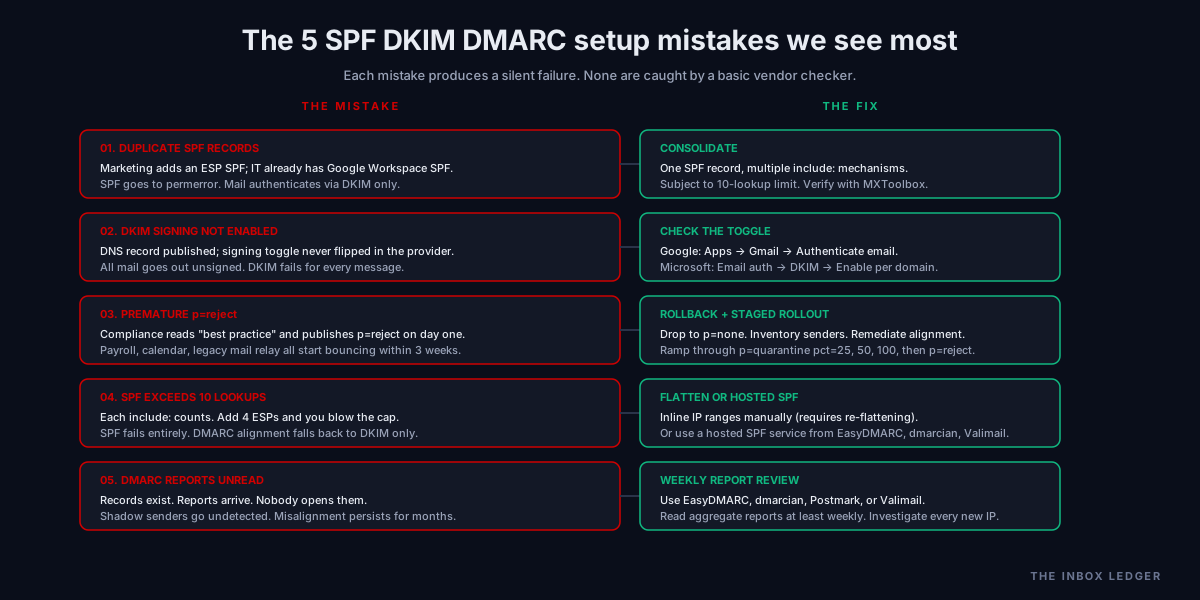
Five spf dkim dmarc setup patterns we see most often on audits:
1. Publishing two SPF records
The single most common SPF failure. Often happens when a marketing team adds a record for their ESP without knowing IT already published one for Google Workspace. SPF goes to permerror; mail authenticates via DKIM only. The fix is consolidation; only one SPF record per domain is valid.
2. Forgetting to enable DKIM signing in the provider
The DNS record gets published. The signing toggle in the provider’s admin console never gets flipped. Mail goes out unsigned. DKIM fails for every message. The fix is checking the toggle: Google Workspace admin → Apps → Gmail → Authenticate email; Microsoft 365 → Email auth → DKIM → Enable.
3. Publishing DMARC p=reject on day one
The compliance team reads “best practice is p=reject” and publishes it. Three weeks later, the payroll provider, the calendar service, and the legacy mail relay are all bouncing. The fix is rolling back to p=none, doing the inventory work, then escalating through quarantine. Covered in detail in the DMARC policy guide.
4. SPF over the 10-lookup limit
Adding new ESPs to SPF until the lookup count exceeds 10. SPF fails entirely; DMARC alignment depends on DKIM only. Some receivers still treat this as soft-fail; others as permerror. The fix is SPF flattening or moving to a hosted SPF service.
5. Not reading DMARC aggregate reports
The records exist. The reports arrive. Nobody opens them. New shadow senders go undetected for months. Misaligned vendors stay misaligned. The fix is using a DMARC reporting tool (EasyDMARC, Dmarcian, Postmark DMARC, Valimail) and reviewing reports at least weekly.
The practical SPF DKIM DMARC setup checklist
A complete deployment, in order. Each step assumes the prior one is verified:
- Audit current state. Use MXToolbox to check for existing SPF, DKIM, DMARC records on your sending domain
- Inventory all senders. Every ESP, every vendor, every internal mail server that sends in your name needs to be on the list before you write SPF
- Write the SPF record. Apex TXT, all senders included, lookup count under 10, ending in
~allfor initial deployment - Publish SPF and verify with MXToolbox SPF lookup
- Generate DKIM keys in Google Workspace, Microsoft 365, and each ESP that supports custom DKIM
- Publish DKIM public keys at each selector, enable signing in each provider’s admin console
- Test DKIM by sending a message to a Gmail address you own; verify
dkim=passin headers - Write DMARC record at p=none with
rua=pointing to a reporting tool inbox - Publish DMARC at
_dmarc.yourdomain.com - Confirm aggregate reports arriving within 7 days from Gmail, Yahoo, Microsoft
- Inventory senders from reports. Classify aligned, misaligned-legitimate, unauthorized
- Remediate misaligned-legitimate senders. Custom DKIM, custom return-path, or vendor migration
- Tighten SPF to
-allonce all known senders are inventoried - Escalate DMARC to
p=quarantine; pct=25when 90%+ of mail aligns - Ramp DMARC pct to 50, then 100 over 7 to 14 day intervals
- Move DMARC to
p=rejectoncepct=100is stable for 14+ days - Schedule DKIM key rotation annually
- Review DMARC reports weekly at steady state
A clean run through this list takes 60 to 90 days at a small organization and 4 to 6 months at an enterprise. What we see most often is that steps 5 through 11 are the slow part; everything else is hours of work, not weeks.
How SPF DKIM DMARC setup connects to broader deliverability
spf dkim dmarc setup is necessary but not sufficient. A perfectly authenticated domain with high complaint rates, aggressive cold outreach, or poor list hygiene still ends up in spam. The SPF DKIM DMARC setup closes the spoofing vector and proves you are a legitimate sender; the rest of your sender reputation is built through volume discipline, engagement, and list quality.
The email hygiene playbook covers the cleanup side. The cold email deliverability checklist covers the operational baseline. The SMTP relay guide covers how relay choice affects alignment options. For teams running cold outbound, the cold email outreach guide and the email warmup tools guide cover the operational practices that compound with strong authentication.
If you are setting up cold email infrastructure from scratch, spf dkim dmarc setup is step one and warmup is step two; see the how to improve email deliverability walkthrough for the full sequence.
Frequently asked questions
How long does SPF DKIM DMARC setup take?
Do I need all three of SPF, DKIM, and DMARC, or can I skip one?
What is the 10-lookup limit in SPF and why does it matter?
Can I have multiple SPF records?
What is DKIM alignment and why do most SPF DKIM DMARC setups fail it?
Do I need to rotate DKIM keys?
How do I verify my SPF DKIM DMARC setup is working?
The bottom line on SPF DKIM DMARC setup
A working spf dkim dmarc setup is not the DNS records. The records are the easy part. The work that determines whether the setup actually authenticates your mail is the alignment remediation, the sender inventory, the SPF flattening discipline, and the weekly review of DMARC aggregate reports. The teams we work with that get this right end up at p=reject with stronger inbox placement, no spoofing, and BIMI eligibility if they want it. The teams that publish the records and stop reading the reports end up with eroding deliverability and no diagnostic data to explain why.
The cluster work matters here. Strong authentication compounds with clean lists (email hygiene), proper warmup (email warmup tools), and disciplined sending behavior (cold email deliverability checklist). Authentication on top of poor sender behavior still loses; spf dkim dmarc setup on top of clean operations is what produces consistent inbox placement.
For the spf dkim dmarc setup policy escalation specifically, see the DMARC policy guide. For the broader sender reputation context, see the email deliverability pillar. For the fastest fixes if your inbox rates are eroding right now, see the how to improve email deliverability walkthrough.
Subscribe to the weekly briefing for operator-grade deliverability and authentication notes, one short email every week.
More on Deliverability
Email blacklist removal 2026: the operator playbook
Email blacklist removal in 2026: diagnose the root cause first, identify the tier, delist in the right order, prevent re-listing. The full playbook.
Email deliverability monitoring vs warmup: 2026 guide
Email deliverability monitoring vs warmup in 2026: what each does, when you need both, and why monitoring is non-negotiable post-enforcement.
Spam complaint rate 2026: the 0.3% operator playbook
Spam complaint rate in 2026: the 0.3% threshold explained, why ESP dashboards underreport, the five drivers of complaints, and the recovery playbook.